Claiming GEAR Badges
To participate in the Arcade Facilitator Program, you need to earn 2 essential badges on your Google Developer Profile.
Facing Profile or Auto-Login Issues?
If you get automatically logged into a different Google account or encounter profile redirect errors while claiming the badge, try performing all these steps inside an Incognito / Private Window. This ensures you log in with the exact email address used during your Arcade Facilitator enrollment.
1. Arcade - GEAR Badge
A instant digital badge earned directly via Google Developer Profile page award link in less than a minute.
2. GEAR Badge
Gemini Enterprise Agent Ready program badge earned by registering and completing the GEAR program enrollment.
Instructions to Earn the NEW Arcade - GEAR Digital Badge
⏱️ Requires less than 1 minute to complete
Sign In to Your Account
Make sure you are signed in to your Google Developer Program account. If not, go to me.developers.google.com/u/me, click on "Join the program" and then "Sign in" using the same email address. (Skip if already signed in).
💡 Tip: If your browser automatically logs you into a different profile or account, open an Incognito / Private Window and complete all steps there.
Navigate to Award Page
Once signed in, simply navigate to the badge award page:
Wait on the Page (10 - 15 Seconds)
Once there, wait for 10–15 seconds. DO NOT navigate away from the page and do not click anything.
Confirmation Toast Appears
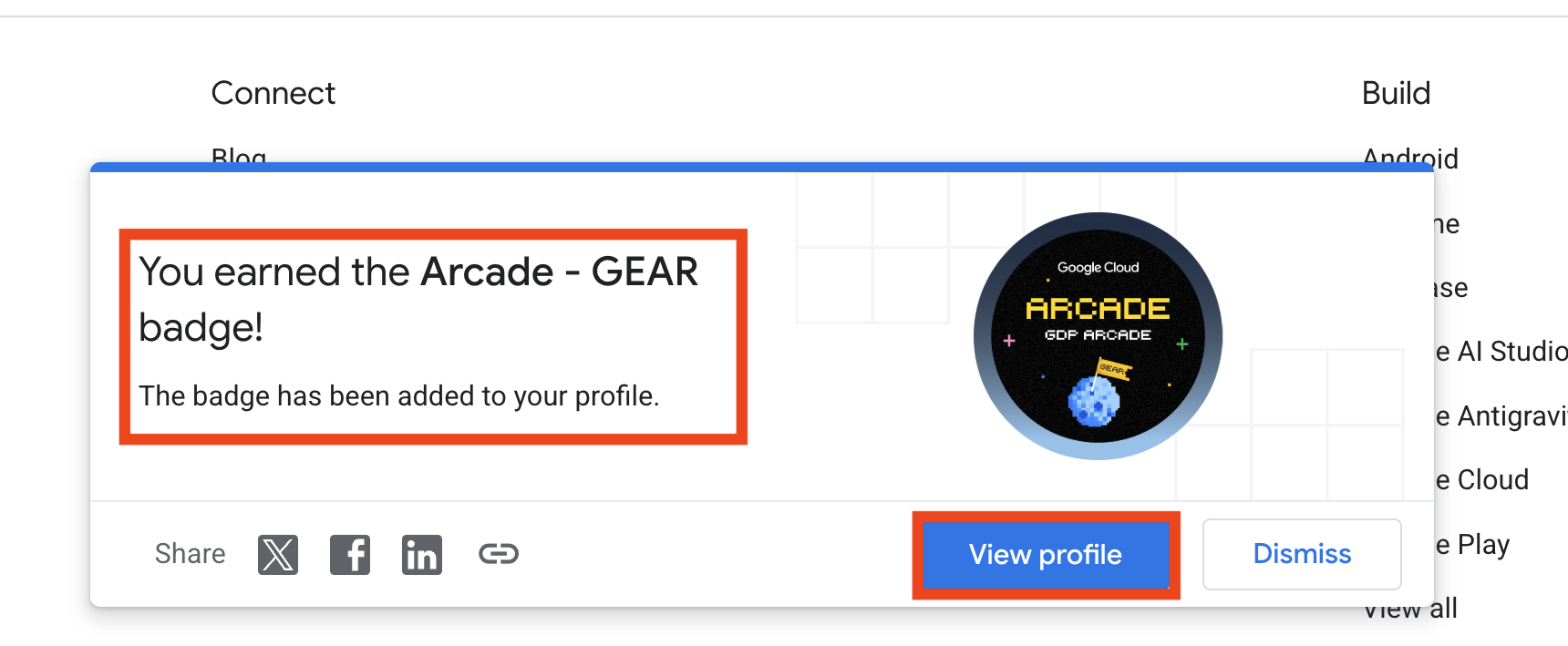
You should now see a notification toast at the bottom of the screen indicating that you have successfully earned the Arcade - GEAR badge.
Verify on Your Profile
Click on "View Profile" to go to your Google Developer Profile and confirm that the badge has been added.
📷 Screenshot Reference (Toast Notification)
Steps for the GEAR Badge (Gemini Enterprise Agent Ready)
You must have signed up for the GEAR program while enrolling and earned the GEAR badge on your Google Developer profile. If you have not already done so, please follow the link below to sign up and earn your badge.
🎥 Video Guide: How to Earn the GEAR Badge
Watch this step-by-step video tutorial for detailed instructions:
Important Reminder
Ensure that you use the same email address for your Google Developer Program account as you used when registering for the Arcade Facilitator Program so your progress can be properly verified and tracked.